


클러스터 만들기
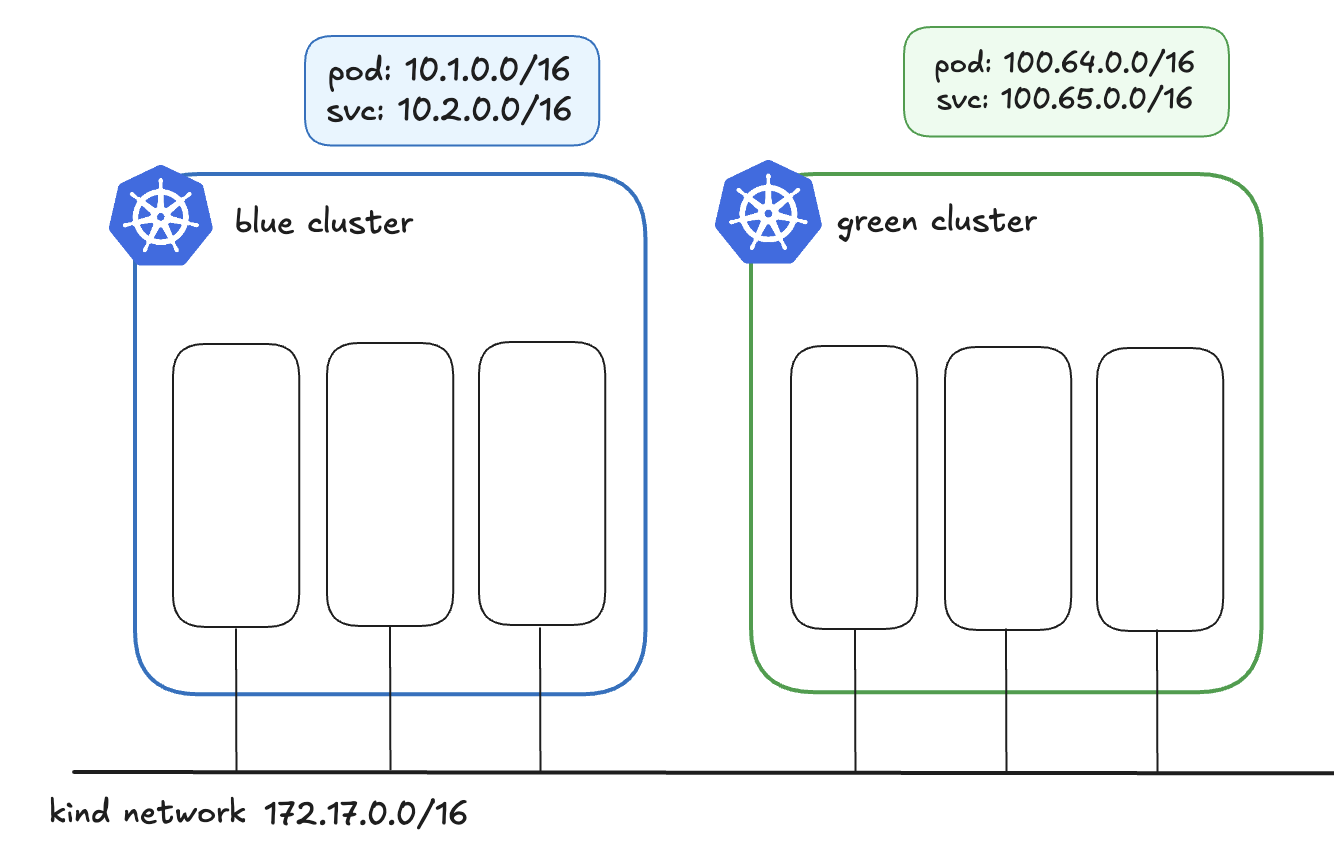
우선 멀티클러스터 구성을 위한 클러스터 2개를 생성해야합니다. 아래의 그림과 같은 구성으로 클러스터를 만들 예정입니다.
Blue 클러스터 생성하기
파일을 구분짓기 쉽기 위해 blue 폴더 내에 만들었습니다.
# blud/config.yaml
kind: Cluster
apiVersion: kind.x-k8s.io/v1alpha4
nodes:
  - role: control-plane
  - role: worker
  - role: worker
  - role: worker

networking:
  disableDefaultCNI: true
  kubeProxyMode: "none"
  podSubnet: "10.1.0.0/16"
  serviceSubnet: "10.2.0.0/16"
아래의 명령어로 blue 클러스터를 생성합니다.
# blue 생성
kind create cluster --name blue --config blue/config.yaml
Green 클러스터 생성하기
blue와 동일하게 green 폴더 내에 파일생성합니다.
# green/config.yaml
kind: Cluster
apiVersion: kind.x-k8s.io/v1alpha4
nodes:
  - role: control-plane
  - role: worker
  - role: worker
  - role: worker

networking:
  disableDefaultCNI: true
  kubeProxyMode: "none"
  podSubnet: "100.64.0.0/16"
  serviceSubnet: "100.65.0.0/16"
아래의 명령어로 green 클러스터를 생성합니다.
# green 생성
kind create cluster --name green --config green/config.yaml
Calico 설치하기
위의 설정으로 생성된 클러스터는 cni가 없기 때문에 calico를 추가로 설치합니다.
# 최신버전 확인하기
CALICO_LATEST=$( curl --silent "https://api.github.com/repos/projectcalico/calico/releases/latest" | jq '.tag_name' -r )

# IPIP 모드 설치
# blue
kubectl apply --context kind-blue -f https://raw.githubusercontent.com/projectcalico/calico/$CALICO_LATEST/manifests/calico.yaml
# green
kubectl apply --context kind-green -f https://raw.githubusercontent.com/projectcalico/calico/$CALICO_LATEST/manifests/calico.yaml
Cilium 설치하기
apiVersion: "cilium.io/v2alpha1"
kind: CiliumL2AnnouncementPolicy
metadata:
  name: default
spec:
  externalIPs: true
  loadBalancerIPs: true
apiVersion: cilium.io/v2alpha1
kind: CiliumLoadBalancerIPPool
metadata:
  name: ipam
spec:
  blocks:
    - start: 172.17.0.200
      stop: 172.17.0.201
apiVersion: cilium.io/v2alpha1
kind: CiliumLoadBalancerIPPool
metadata:
name: ipam
spec:
blocks:
- start: 172.17.0.100
stop: 172.17.0.101# blue
kubectl config use-context kind-blue
export KUBE_API_SERVER_IP=$( kubectl get nodes -l node-role.kubernetes.io/control-plane -o yaml | yq '.items[0].status.addresses[] | select(.type=="InternalIP").address' );
export KUBE_API_SERVER_PORT=6443;
cilium install \
--set kubeProxyReplacement=true \
--set hubble.enabled=true \
--set hubble.relay.enabled=true \
--set hubble.ui.enabled=true \
--set l2announcements.enabled=true \
--set k8sServiceHost=${KUBE_API_SERVER_IP} \
--set k8sServicePort=${KUBE_API_SERVER_PORT} \
--set externalIPs.enabled=true \
--set cni.exclusive=false \
--set socketLB.hostNamespaceOnly=true
kubectl apply -f ipam.yaml
kubectl apply -f blue/ippool.yaml
# green
kubectl config use-context kind-green
export KUBE_API_SERVER_IP=$( kubectl get nodes -l node-role.kubernetes.io/control-plane -o yaml | yq '.items[0].status.addresses[] | select(.type=="InternalIP").address' );
export KUBE_API_SERVER_PORT=6443;
cilium install \
--set kubeProxyReplacement=true \
--set hubble.enabled=true \
--set hubble.relay.enabled=true \
--set hubble.ui.enabled=true \
--set l2announcements.enabled=true \
--set k8sServiceHost=${KUBE_API_SERVER_IP} \
--set k8sServicePort=${KUBE_API_SERVER_PORT} \
--set externalIPs.enabled=true \
--set cni.exclusive=false \
--set socketLB.hostNamespaceOnly=true
kubectl apply -f ipam.yaml
kubectl apply -f green/ippool.yaml
Istio 설치하기
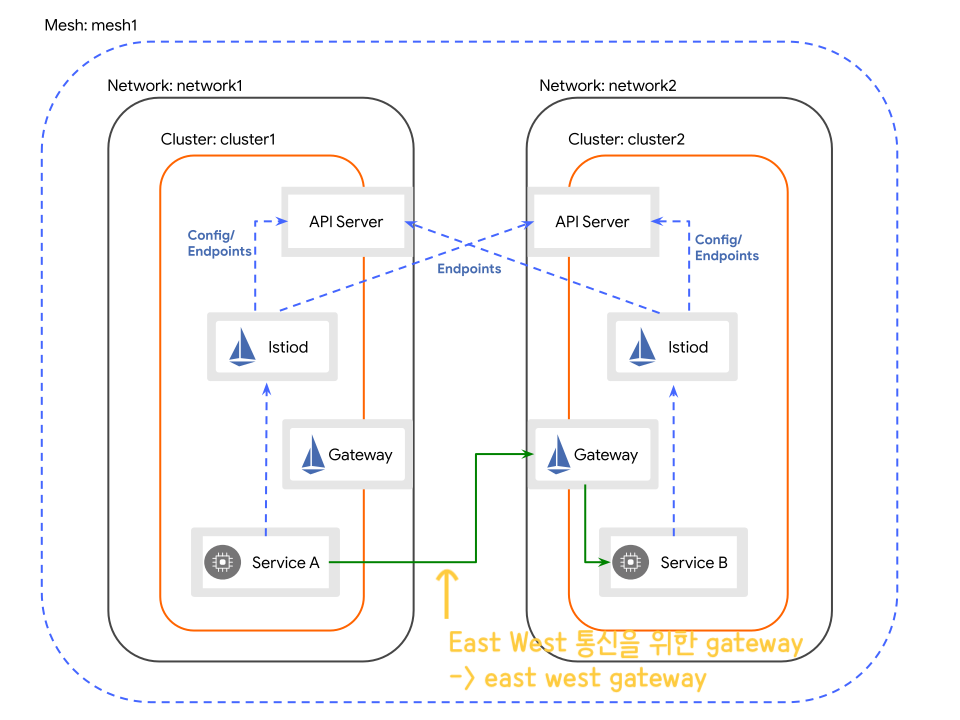
구성도
이번에 구성할 멀티 클러스터 환경은 네트워크 대역이 다른 multi control plane을 설치하는 구성입니다. 두개의 클러스터는 통신이 되어야하는 곳이 2곳이 있습니다.
- istiod → 다른 네트워크에 있는 클러스터의 api 서버 (반대의 경우도 동일)
- 다른 클러스터의 엔드포인트 리스트 및 설정을 조회
- 다른 클러스터의 노드대역 → east west gateway의 아이피 (LoadBalancer IP)
- 서비스 A에서 B로 통신할 때 east west gateway를 통해 호출

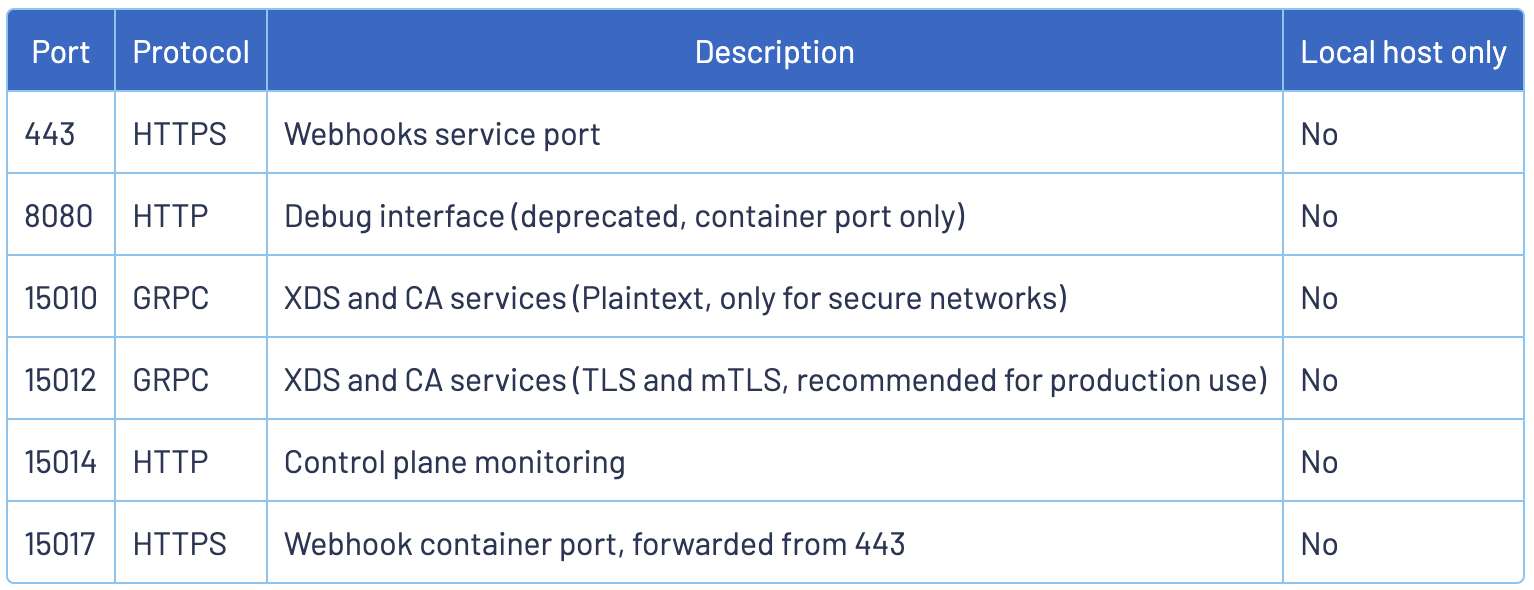
포트정보

설치 방법 살펴보기
istio를 설치할 수 있는 방법은 다양한데 istioctl의 기본 설치 방식으로는 multi cluster 환경 구성을 할수 없습니다.
istio operator를 사용하거나 helm차트를 사용해야합니다. 이번 설치에서는 helm차트를 이용해서 설치할 예정입니다.
istioOperator를 사용하여 설치하는 방법은 아래의 공식문서를 참고바랍니다.
https://istio.io/latest/docs/setup/install/multicluster/multi-primary_multi-network/
Install Multi-Primary on different networks
Install an Istio mesh across multiple primary clusters on different networks.
istio.io

helm 차트 확인
먼저 helm repo를 등록합니다.
helm repo add istio https://istio-release.storage.googleapis.com/charts
helm repo update
그리고 helm repo를 업데이트합니다.
레파지토리에는 다음과 같은 helm차트들이 존재합니다.

istiod 설치하기
이번 테스트에서는 meshID는 color로 클러스터의 이름은 kind-<color> 그리고 network의 이름은 각 컬러의 이름으로 지정해서 생성해보려고 합니다.
💙 Blue 클러스터
다음은 blue 클러스터에 설치할 설정 파일입니다.
CTX_CLUSTER1="kind-blue"
MESH_ID="color"
CLUSTER1_NAME="bcluster"
NETWORK1_NAME="blue"

kubectl create ns istio-system --context "${CTX_CLUSTER1}"
helm install istio-base istio/base -n istio-system --kube-context "${CTX_CLUSTER1}"
helm install istiod istio/istiod -n istio-system --kube-context "${CTX_CLUSTER1}" \
  --set global.meshID="${MESH_ID}" --set global.multiCluster.clusterName="${CLUSTER1_NAME}" \
  --set global.network="${NETWORK1_NAME}"

kubectl --context="${CTX_CLUSTER1}" label namespace istio-system topology.istio.io/network="${NETWORK1_NAME}"
💚 Green 클러스터
이번엔 green에 설정해보겠습니다. green도 동일하게 istio를 설치해보겠습니다.
CTX_CLUSTER2="kind-green"
MESH_ID="color"
CLUSTER2_NAME="gcluster"
NETWORK2_NAME="green"

kubectl create ns istio-system --context "${CTX_CLUSTER2}"
helm install istio-base istio/base -n istio-system --kube-context "${CTX_CLUSTER2}"
helm install istiod istio/istiod -n istio-system --kube-context "${CTX_CLUSTER2}" \
  --set global.meshID="${MESH_ID}" --set global.multiCluster.clusterName="${CLUSTER2_NAME}" \
  --set global.network="${NETWORK2_NAME}"

kubectl --context="${CTX_CLUSTER2}" label namespace istio-system topology.istio.io/network="${NETWORK2_NAME}"
Peer Authenticator
apiVersion: security.istio.io/v1beta1
kind: PeerAuthentication
metadata:
  name: default
spec:
  mtls:
    mode: DISABLE
east-west gateway 설치하기
이제 각기 다른 네트워크 대역에 있는 서비스끼리 통신이 가능하게 하기 위한 gateway를 설치해야한다.
일반적으로 들어오는 통신의 입구역할을 하는 internal Gateway, 나가는 통신의 출구가 되는 egress Gateway 외에도 east west 간의 통신의 입구가 되는 east west gateway를 만들어야 합니다.
CTX_CLUSTER1="kind-blue"
CTX_CLUSTER2="kind-green"
# blue 설치
helm install istio-eastwestgateway istio/gateway -n istio-system \
  --kube-context "${CTX_CLUSTER1}" \
  --set name=istio-eastwestgateway --set networkGateway=blue

# green 설치
helm install istio-eastwestgateway istio/gateway -n istio-system \
  --kube-context "${CTX_CLUSTER2}" \
  --set name=istio-eastwestgateway --set networkGateway=green
확인해보기
istioctl proxy-status --context kind-blue
istioctl proxy-status --context kind-green
클러스터 이름이 잘 설정된 것을 확인할 수 있습니다.

east-west gateway에 서비스를 노출하기
이제 east-west gateway를 설치했으면 이 east-west gateway를 통해 서비스가 통신될 수 있도록 설정을 해야합니다. 설치 된 eastwestgateway의 라벨 값을 확인해 보았을 때 eastwestgateway로 라벨이 설정된 것을 확인할 수 있습니다.

이 정보를 갖고 Gateway를 설정하면 됩니다.
apiVersion: networking.istio.io/v1
kind: Gateway
metadata:
  name: cross-network-gateway
spec:
  selector:
    istio: eastwestgateway
  servers:
    - port:
        number: 15443
        name: tls
        protocol: TLS
      tls:
        mode: AUTO_PASSTHROUGH
      hosts:
        - "*.local"
배포해보겠습니다.
kubectl apply --context kind-blue -n istio-system -f gateway.yaml
kubectl apply --context kind-green -n istio-system -f gateway.yaml
원격 시크릿 추가하기 (= 실패한 버전)
💙 Blue 클러스터
green 클러스터의 정보를 가져와서 blue 클러스터에 저장한다.
CTX_CLUSTER1="kind-blue"
CTX_CLUSTER2="kind-green"
istioctl create-remote-secret \
  --context="${CTX_CLUSTER2}" \
  --name=gcluster | \
  kubectl apply -f - --context="${CTX_CLUSTER1}"
💚 Green 클러스터
CTX_CLUSTER1="kind-blue"
CTX_CLUSTER2="kind-green"
istioctl create-remote-secret \
  --context="${CTX_CLUSTER1}" \
  --name=bcluster | \
  kubectl apply -f - --context="${CTX_CLUSTER2}"
원격 클러스터 리스트 확인하기
원격 리스트를 조회했을 때 timeout이 발생했는데.. 이유는 양 클러스터에서 서로의 API서버로 통신이 되어야하는데 api서버 주소가 127.0.0.1로 되어있어서 통신이 안되어서 문제가 되었습니다. 아래에서 수정을 해보겠습니다.

원격 시크릿 추가하기 (= 성공한 버전)
💙 Blue 클러스터
green 클러스터의 정보를 가져와서 blue 클러스터에 저장한다.
CTX_CLUSTER1="kind-blue"
CTX_CLUSTER2="kind-green"

GREEN_CONTROLPLANE_IP=$( kubectl get nodes --context kind-green green-control-plane -o yaml | yq '.status.addresses[] | select(.type=="InternalIP").address' )
GREEN_API_SERVER="https://${GREEN_CONTROLPLANE_IP}:6443"

istioctl create-remote-secret \
  --context="${CTX_CLUSTER2}" --server="${GREEN_API_SERVER}" \
  --name=gcluster > ${CTX_CLUSTER1}.yaml

# blue 클러스터에 적용하기
kubectl apply --context ${CTX_CLUSTER1} -f ${CTX_CLUSTER1}.yaml
💚 Green 클러스터
CTX_CLUSTER1="kind-blue"
CTX_CLUSTER2="kind-green"
BLUE_CONTROLPLANE_IP="$( kubectl get nodes --context kind-blue blue-control-plane -o yaml | yq '.status.addresses[] | select(.type=="InternalIP").address' )"
BLUE_API_SERVER="https://${BLUE_CONTROLPLANE_IP}:6443"

istioctl create-remote-secret \
  --context="${CTX_CLUSTER1}" --server "${BLUE_API_SERVER}" \
  --name=bcluster > ${CTX_CLUSTER2}.yaml

# green 클러스터에 적용하기
kubectl apply --context ${CTX_CLUSTER2} -f ${CTX_CLUSTER2}.yaml
원격 클러스터 리스트 확인하기
각 클러스터에서 다른 클러스터로 잘 싱크 되는 것을 확인할 수 있습니다.
istioctl remote-clusters --context kind-blue
istioctl remote-clusters --context kind-green
통신 확인하기
istio 활성화 하기
귀찮으니까. default 네임스페이스에 라벨을 추가하겠습니다.
kubectl label ns default istio-injection=enabled --context kind-green
kubectl label ns default istio-injection=enabled --context kind-blue
테스트 용 파드 띄우기
blue 클러스터에는 v1 버전의 파드를 green에는 v2 버전의 파드를 띄우고 같은 서비스 이름으로 배포해보겠습니다.
💙 Blue 클러스터
다음의 내용으로 파일을 생성합니다.
apiVersion: v1
kind: Service
metadata:
  name: helloworld
  labels:
    app: helloworld
    service: helloworld
spec:
  ports:
  - port: 5000
    name: http
  selector:
    app: helloworld
---
apiVersion: apps/v1
kind: Deployment
metadata:
  name: helloworld-v1
  labels:
    app: helloworld
    version: v1
spec:
  replicas: 1
  selector:
    matchLabels:
      app: helloworld
      version: v1
  template:
    metadata:
      labels:
        app: helloworld
        version: v1
    spec:
      containers:
      - name: helloworld
        image: docker.io/istio/examples-helloworld-v1:1.0
        resources:
          requests:
            cpu: "100m"
        imagePullPolicy: IfNotPresent #Always
        ports:
        - containerPort: 5000
이제 만들어보겠습니다.
kubectl apply --context kind-blue -f blue/test.yaml
💚 Green 클러스터
이번엔 v2를 응답해주는 파드를 띄워보겠습니다. 이때 서비스객체는 같은 이름으로 생성합니다.
apiVersion: v1
kind: Service
metadata:
  name: helloworld
  labels:
    app: helloworld
    service: helloworld
spec:
  ports:
  - port: 5000
    name: http
  selector:
    app: helloworld
---
apiVersion: apps/v1
kind: Deployment
metadata:
  name: helloworld-v2
  labels:
    app: helloworld
    version: v2
spec:
  replicas: 1
  selector:
    matchLabels:
      app: helloworld
      version: v2
  template:
    metadata:
      labels:
        app: helloworld
        version: v2
    spec:
      containers:
      - name: helloworld
        image: docker.io/istio/examples-helloworld-v2:1.0
        resources:
          requests:
            cpu: "100m"
        imagePullPolicy: IfNotPresent #Always
        ports:
        - containerPort: 5000
생성합니다.
kubectl apply --context kind-green -f green/test.yaml
확인해보기
blue 클러스터에 만들어보겠습니다.
apiVersion: apps/v1
kind: Deployment
metadata:
  name: curl
spec:
  replicas: 1
  selector:
    matchLabels:
      app: curl
  template:
    metadata:
      labels:
        app: curl
    spec:
      terminationGracePeriodSeconds: 0
      containers:
      - name: curl
        image: curlimages/curl
        command: ["/bin/sleep", "infinity"]
        imagePullPolicy: IfNotPresent
        volumeMounts:
        - mountPath: /etc/curl/tls
          name: secret-volume
      volumes:
      - name: secret-volume
        secret:
          secretName: curl-secret
          optional: true
생성 명령어
kubectl apply --context kind-blue -f blue/curl.yaml
이제 파드에 들어가서 호출해보겠습니다.
while true; do curl -sS helloworld.default:5000/hello; sleep 0.1; done
...
(현재.. 이러니 저러니 해도.. 통신이 안되고있음..) 와이..
'K8S > istio' 카테고리의 다른 글
| istio 멀티 클러스터 설치를 위한 인증서 구성 방법 (0) | 2024.09.24 |
|---|---|
| 맥에서 istio 이미지 빌드하기 (+orbstack) (0) | 2024.09.22 |